Automated tools are used to aid in the auditing, discovery, and exploitation of vulnerable web applications. In this lab, we will practice using some of the common tools that professionals use to aid in the process of discovering bugs in sites.
What you will do
You will use Google Cloud Platform's Compute Engine to deploy a number of vulnerable servers and docker containers. Then, using a Kali VM, you will point automated tools at these vulnerable services to identify specific issues with them. We must set up our own vulnerable infrastructure since many of these tools can not be used on external web applications without prior consent. It is important for these tasks to be confined to private, internal IP addresses on your cloud project.
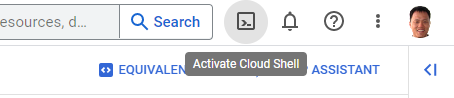
The exercises require the use of a Kali Linux VM. We can set one up in the cloud for this purpose. Log into your Google Cloud Platform account and from the web console, launch Cloud Shell.
If they do not exist already, create two firewall rules to allow HTTP and HTTPS traffic.
gcloud compute firewall-rules create default-allow-http \
  --allow=tcp:80 --target-tags=http-server

gcloud compute firewall-rules create default-allow-https \
  --allow=tcp:443 --target-tags=https-server
Then, run the command below to find the most recent version of the Kali VM image on the course's GCP project.
gcloud compute images list \
  --project pdx-cs --no-standard-images
Make a note of the name of the Kali VM image, then fill in the gcloud command below and launch a VM using the image. Attach the tags that will allow incoming HTTP and HTTPS traffic to the VM (needed for metasploit exercises)
gcloud compute instances create kali-vm \
  --machine-type e2-medium --zone us-west1-b \
  --image-project pdx-cs \
  --image kali-rolling-latest

gcloud compute instances add-tags kali-vm --tags=http-server,https-server
Keep track of both the external and internal IP address of each instance. We will be using the internal IP address for the attacks, but will need to connect via the external IP addresses initially.
kali_external_IP, kali_internal_IP
ssh into your Kali VM instance to ensure you can access it.
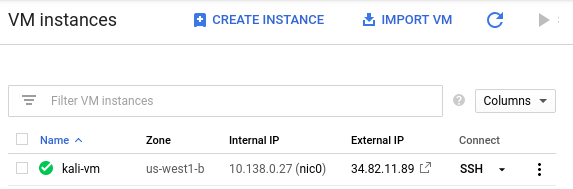
Alternatively, you can perform the command below to do so as well.
gcloud compute ssh kali-vm --zone=us-west1-bWe will be performing reconnaissance tasks on a variety of servers with the VM created in the previous step.
LAMP stack
For the first VM, we'll set up an entire LAMP (Linux, Apache, MySQL, PHP) stack. Bring up Cloud Shell and create the VM.
gcloud compute instances create lampstack \
  --machine-type e2-micro --zone us-west1-b \
  --image-project ubuntu-os-cloud --image-family ubuntu-2204-lts \
  --tags=http-server
Then, ssh into the VM, and install packages that implement a LAMP server.
sudo apt update -y
sudo apt install lamp-server^
Go to "Compute Engine" to find the External IP address of the VM that is running the server and visit the address in a web browser.
- Take a screenshot of the landing page that includes your OdinId
nginx
For the second VM, we'll set up an nginx server. Bring up Cloud Shell and create the VM.
gcloud compute instances create nginx \
  --machine-type e2-micro --zone us-west1-b \
  --image-project ubuntu-os-cloud --image-family ubuntu-2204-lts \
  --tags=http-server
Then, ssh into the VM, and install the nginx package.
sudo apt update -y
sudo apt install nginx -y
Go to "Compute Engine" to find the External IP address of the VM that is running the server and visit the address in a web browser.
- Take a screenshot of the landing page that includes your OdinId
ssh into the nginx and lamp stack instances via the web console and install the lsof tool in each
sudo apt install lsofThe lsof command can list all of the open file descriptors (e.g. files, network connections, listening sockets) that are currently open on the system and the processes that have them open. It is a useful utility for seeing what is being run on the server. We are interested in processes that have a TCP port on the server open and in a "LISTEN" state. Web servers typically "LISTEN" on port 80 (*:http) to receive incoming connections from web browsers. On each VM, perform the following command to find the name of the command that has the web server port in a LISTEN state.
sudo lsof +c 10 -i | egrep "(LISTEN|COMMAND)"Each web server is launched with either a pointer to a configuration file or a configuration directory that specifies how the web server has been set up to serve content. Use the command name from the lsof listing and perform a process listing searching for that command name using ps to identify the location of the configuration file or directory the server is using.
sudo ps -ef | egrep <COMMAND_NAME>Investigate the configuration file of the web server. Identify the directory path that serves the default landing page for each server. For example, on Apache a ServerRoot or DocumentRoot directive might specify this path or on nginx, the "location /" path for the server might specify this path. Alternatively, one can perform a "find" command to locate files that might contain the landing page of each server. The command below will search the current directory (and all of its subdirectories) for files that begin with "index".
sudo find . -name "index*"After finding the root directory on each web server, change into the directory.
cd <path_to_document_root>Then, create directories named secret, files, admin
sudo mkdir secret files adminNext, create index.html files in each directory using the following bash command
for i in secret files admin
do
sudo bash -c "echo 'Hello $i' > $i/index.html"
done
Perform an ls -l on the web server files to determine the user and group ownership on the files being served. Then, change the ownership and group of the directories and files created to match. Note that, files must be readable and directories must be readable and executable by the web server in order for them to be served. Useful commands for recursively (-R) changing the user and group settings for each file in the current directory and for recursively setting files to be group/other readable along with directories to be group/other readable and executable are below:
sudo chown -R www-data:www-data .
sudo chmod -R go+rX .
Visit the "secret" directory in each of the VMs using a web browser pointed to the External IP address to ensure you've created the files and directories correctly.

Finally, we will be using the tools that we have set up on your course WFP VMs. Visit the Compute Engine console and start these VMs up.
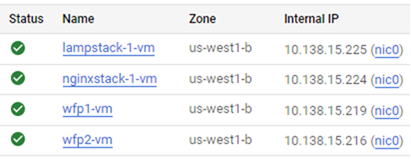
Note internal addresses of all VMs
It is important that your accesses in these labs use the Internal IP addresses of each server. Make a note of the Internal IP addresses of your VMs. We will be utilizing them in subsequent steps (e.g. wfp1_internal_IP, wfp2_internal_IP etc..)
- Take a screenshot and include in your notebook a listing of all VMs you have running and their
Internal IPaddresses.